Ok another booboo for the books 🙂 . After several troubleshooting attempts I wasn’t able to restore my vCenter. At that time I kind had it, and in a moment of frustration, I deleted my vCenter without thinking to much about it.
Now if you have distributed switches, like me, you automatically create an issue. All your distributed port groups will go into an unknown state.

Now don’t worry, we can solve this 🙂
The first step we’re going to take is to restore our standard switch. Best to do this from a direct connection to your ESXi. If you do it over a putty session you will loose your connection after you execute this step. For the sake of clear printscreens I’ve did it through a putty session.
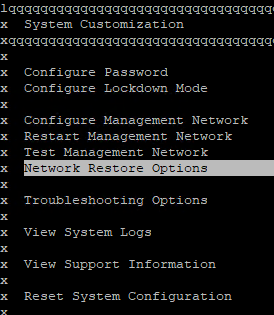
Log in to your ESXi and go to “Network Restore Options”
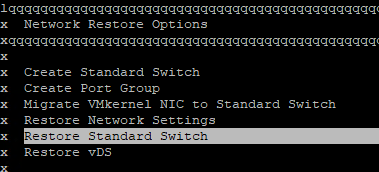
Here select “Restore Standard Switch”
This will create a new switch “vSwitch1” that contains your physical uplinks
If you check your networking, you will see the 2 physical nics that are in your new vSwitch.

Now I want to move the VMkernel port from vSwitch1 to vSwitch0. I could just create the portgroups on the new switch. But I decided to do it this way.
First step is to list your vmknicesxcfg-vmknic -l

We’re going to delete the portgroup that holds the vmkernel. Be aware that if you do this from a putty session you will loose your connection. So better to do it directly from the DCUI.esxcfg-vmknic -d "Management Network1"

If we list our vmknic again, you will see that there’s nothing yet created.esxcfg-vmknic -l
We’re adding the vmkernel with this command, make sure that the portgroup name you provide doesn’t already exists on your vSwitch.esxcfg-vmknic -a -i 10.10.20.10 -n 255.255.255.0 "Management Network"

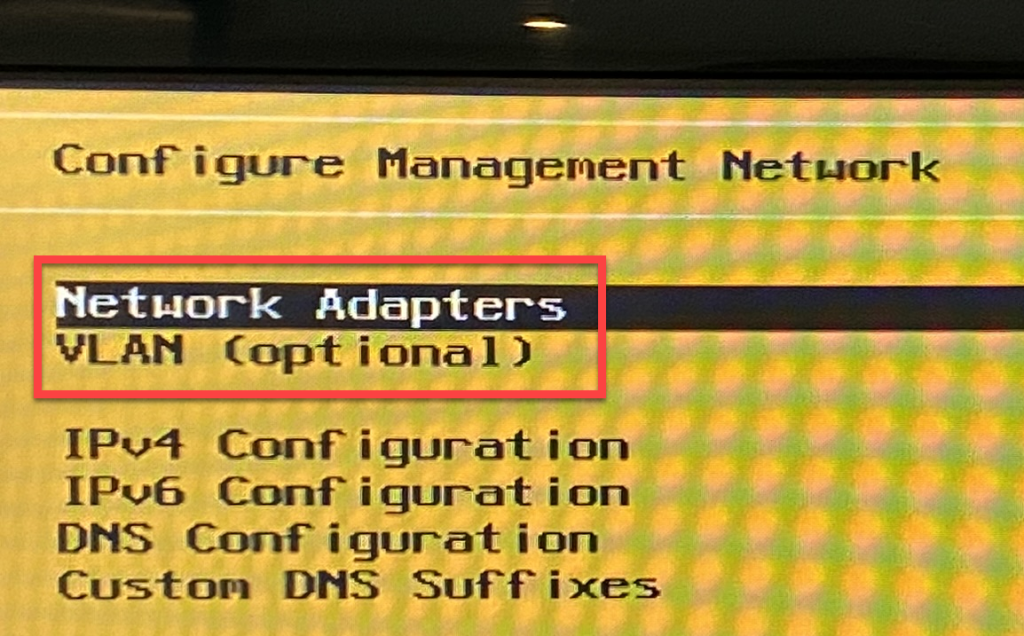
Now I had to select my network adapters and also set my VLAN.
Ok now you have again access to your ESX. But I still have links to the distributed switch.
Delete the distributed switchnet-dvs -d DSwitch
List the switches on your ESX withesxcfg-vswitch -l
You see we get an error for one of the switches.
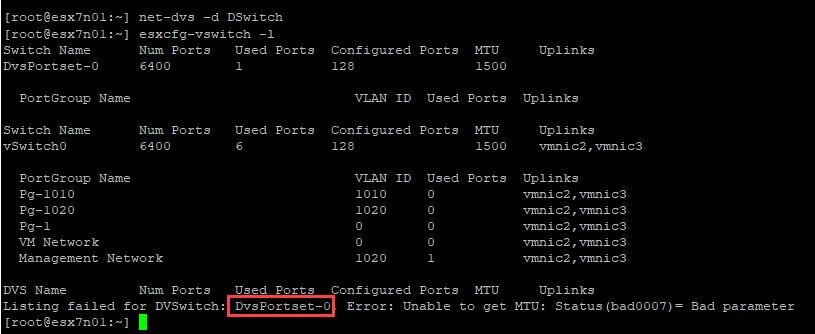
Now we’re going to delete the DVSwitch that’s marked in red above.vsish -e set /net/portsets/DvsPortset-0/destroy destroy
Only thing that remains is to to delete the distributed switch database and reboot the ESXi.
rm -f /etc/vmware/dvsdata.db
reboot

After the reboot you can see that I no longer have the Distributed switches in my overview.
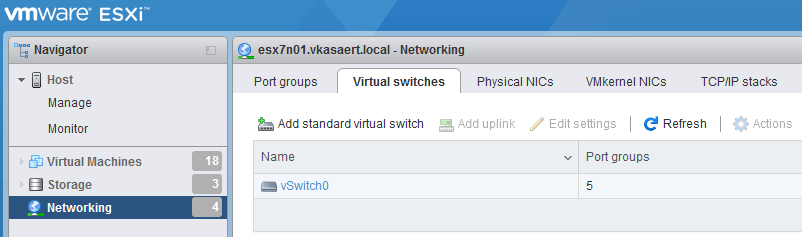
Only thing remaining was to reconfigure my servers to use the port groups from the virtual switch. And then I could install my new vCenter.
 Kristof's virtual life