Kristof, what did you do wrong now? 🙂
Well in my multi-tenant environment I deleted my original “configadmin” account. I did that because I wanted to change my naming convention of my accounts. Once I created my new account through LCM, it was time to test my connection.
Well to my big surprise I got a 403 “you’re not authorized” when trying to connect.
What the heck? I tried connecting to vIDM with that account and there I was able to connect. So no typo in my credentials. I tried a few things in the hope to solve it, but at the end I had to open a case. This article is the summary of that case. They told me that they would create a KB for that but in the mean time you can use my blog to solve your issue.
First login to one of your vRA appliances and make a connection to the identity-db.vracli dev psql identity-db

Get your tenant ID by executing:select * from identity_organization;

Now we’re going to check which ID is the tenant owner:select * from identity_user_organization where organization_id='yourTenantID';

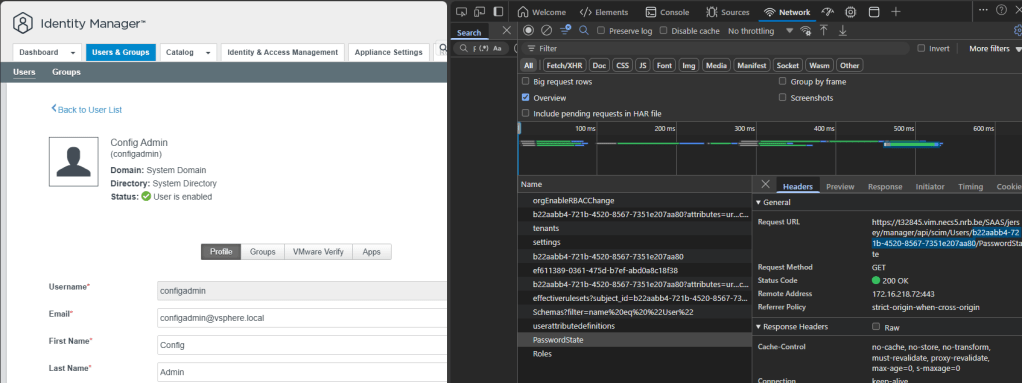
Now we will check in vIDM the ID of the UserID which should have access. You start the developer tools in your browser and you go to “Users & Groups” and you click on your UserID. If you go to “PasswordState” you will find the ID of your User in the Request URL. I highlighted it in blue. So in my case the ID = b22aabb4-721b-4520-8567-7351e207aa80
Now we will check the roles which are assigned to those userids.select * from identity_user_service_role where user_id='yourUserID';

You will see that the account that should hold the roles has zero rows. And the one that is currently configured holds all the roles. So we will need to update that.
Now we will check which userid is assigned to your organization:select * from identity_user_organization where user_id='yourUserID';

So here you see that this also holds the wrong userid.
Now we will update the wrong links with the correct userid. You will see that in the update statements we take care to only update the wrong entries.update identity_user_organization set user_id='b22aabb4-721b-4520-8567-7351e207aa80' where user_id='fb08bc4d-4ed4-4a90-9071-12456aa9b825';
update identity_user_service_role set user_id='b22aabb4-721b-4520-8567-7351e207aa80' where user_id='fb08bc4d-4ed4-4a90-9071-12456aa9b825';
update identity_user_role set user_id='b22aabb4-721b-4520-8567-7351e207aa80' where user_id='fb08bc4d-4ed4-4a90-9071-12456aa9b825';

After executing these 3 update commands you are back in business to connect to your tenant.
Hope this helps you out!
 Kristof's virtual life