If you’ve ever deployed vRealize Orchestrator (vRO) through Lifecycle Manager (LCM) and hit strange errors during first boot, you’re not alone.
Recently, I ran into exactly that situation while setting up an Orchestrator in one of my vRA tenants — and what looked like a simple network issue turned out to be a great troubleshooting lesson.

If you encounter something similar, there’s a VMware KB that points you in the right direction: KB 402908.
However… there are a few details the KB doesn’t tell you. Let’s go through them.
Step 1 — Creating the Network Configuration File
Following the KB, I created the file:/etc/systemd/network/10-eth0.network
Then, I executed the firstboot script located at:/usr/lib/bootstrap/firstboot
Unfortunately, I still received errors — as you can see in the printscreen below.
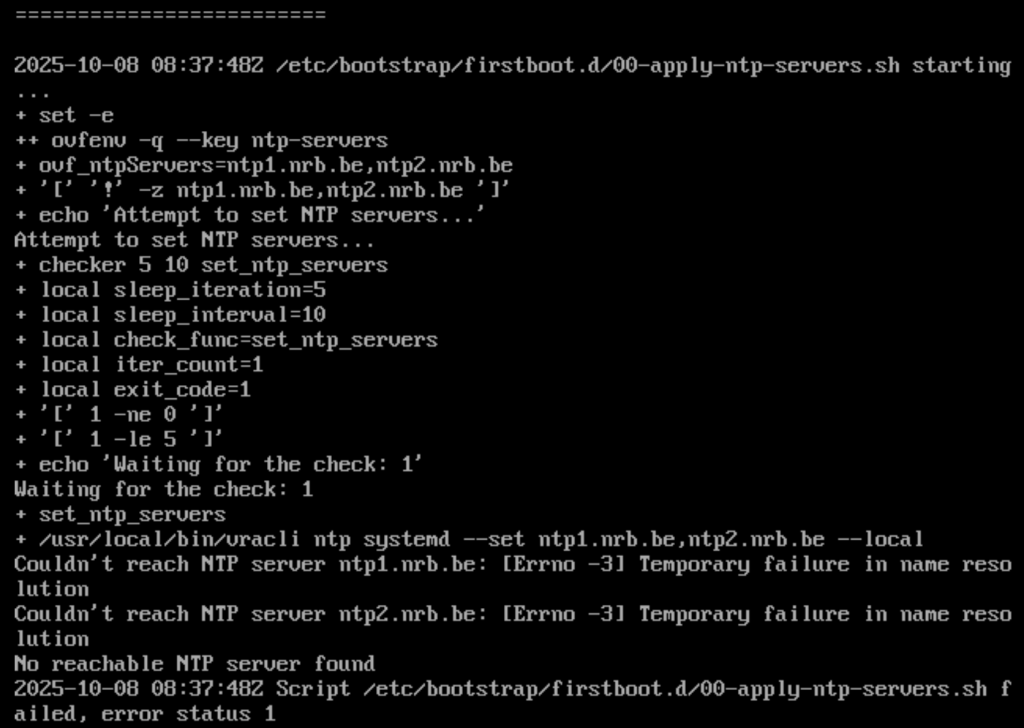
Step 2 — What the KB Doesn’t Mention
What the KB doesn’t mention is that after creating 10-eth0.network,
you must restart the network daemon before re-running the firstboot script:
systemctl restart systemd-networkd
After restarting the daemon and executing the firstboot script again, the installation progressed further — but failed again near the end.

Step 3 — Retrying Through LCM
Since my deployment was triggered via LCM, I retried it directly from there.
Unfortunately, it still failed with the same error — as you can see below.

At that point, I decided to start over with a completely new request.
That’s when I had an epiphany — my initial IP configuration was incorrect.
“No worries, Kristof,” I thought. “Let’s just do it again with the right IPs.” 😄
Step 4 — DNS Issue Discovery
Even with the correct IPs, I hit the same issue during firstboot.
After searching for the error highlighted in red, I found another VMware KB that helped me identify a reverse DNS problem.

The KB suggested running the following commands:/usr/bin/dig +noall +answer +nocookie -x $( iface-ip eth0 )
/usr/bin/dig +noall +answer +noedns -x $( iface-ip eth0 )
/usr/bin/dig +noall +answer -x $( iface-ip eth0 )
You can see in the printscreen below that I got two reverse DNS entries, which isn’t what we want, of course.
This was the reason why I received the error. So, I removed the wrong entries in our DNS.

I restarted the firstboot script, and after a while… TADAAAA 🎉

Step 5 — Success (Almost)
I restarted the deployment in LCM, and this time, it succeeded.
However, when I looked in Aria Automation → Assembler → Infrastructure → Connections → Integrations, there wasn’t a configuration for my new Orchestrator.
So I manually added a new Orchestrator integration, and everything worked perfectly from that point onward.
✅ Lessons Learned
- Always double-check your IP and reverse DNS configuration before deploying.
- Restart the network daemon after creating the
.networkfile — it’s not mentioned in the KB, but it’s crucial. - Even when automation fails, manual troubleshooting can reveal underlying issues that make your next deployment smoother.
💬 Wrapping Up
This experience reminded me that even in automated environments like Aria Automation, good old-fashioned troubleshooting skills still matter.
If this guide helped you resolve your vRA Orchestrator deployment issue, leave a comment below or connect with me on LinkedIn
 Kristof's virtual life