Getting VMware Cloud Foundation 9 deployed is a great milestone, but the real work starts right after the installer finishes. Licensing, depot configuration, and deploying additional components are essential steps before your environment is truly usable.
In this post, I’ll walk through the key post-deployment tasks I performed in my VCF 9 homelab, including registering the environment, configuring the online depot, and deploying Operations for Logs and Operations for Networks — along with a few gotchas I ran into along the way.
Content blog article
- Register your VCF instance
- Configure your depot
- Install additional components
- Configuration Operations-Logs
- Configure backup
- Final thoughts
1. Register your VCF instance
Log in to your Operations Console and navigate to:
License Management → Registration
Click Start Registration. You’ll be redirected to the VCF Business Services Console at https://vcf.broadcom.com.
Log in using your Broadcom account that has access to the required licenses.
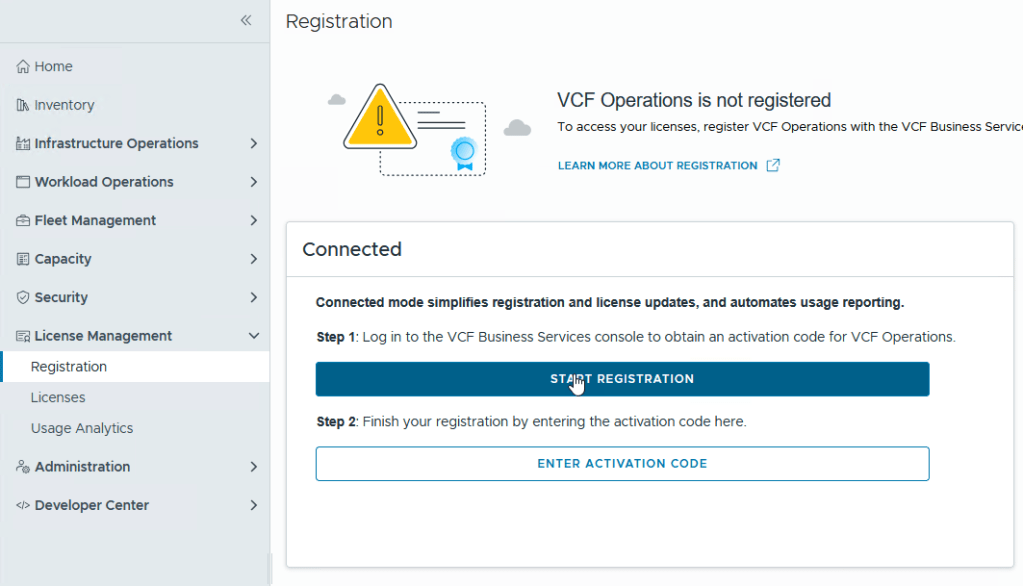
Give your deployment a meaningful name and click Save & Next.
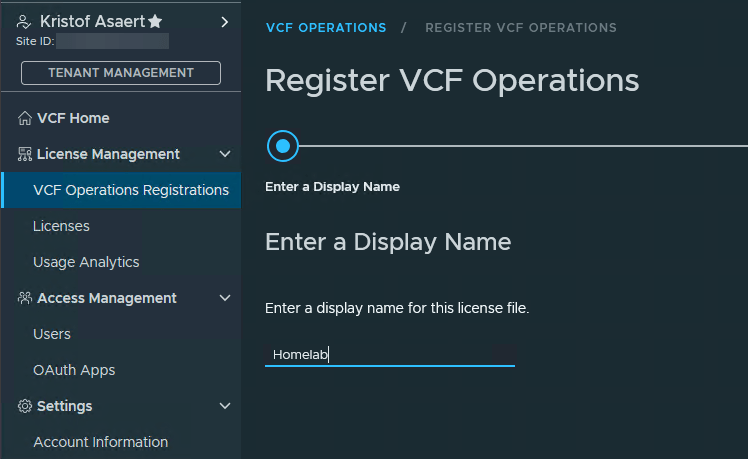
For my homelab, I split up the available licenses to better match my needs. Select the licenses you want to attach and click Save & Next, then continue through the wizard.
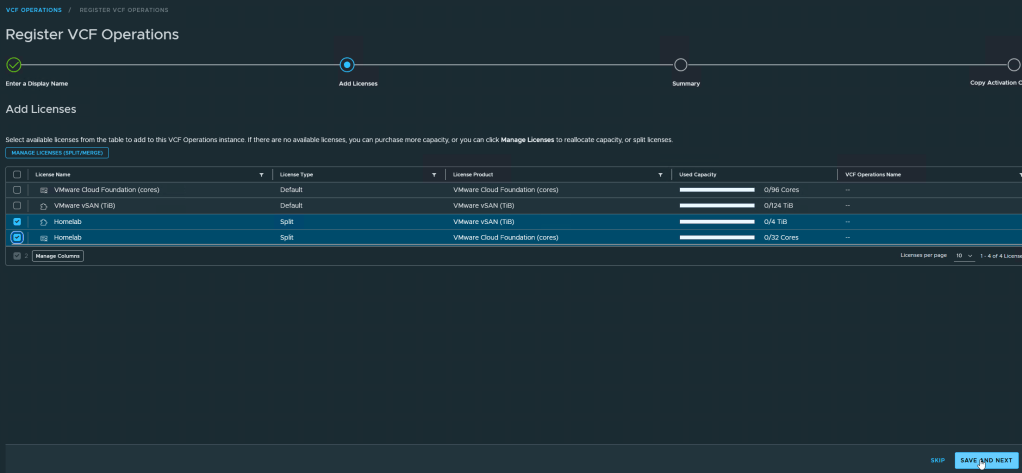
Click on Next to go to the next step.
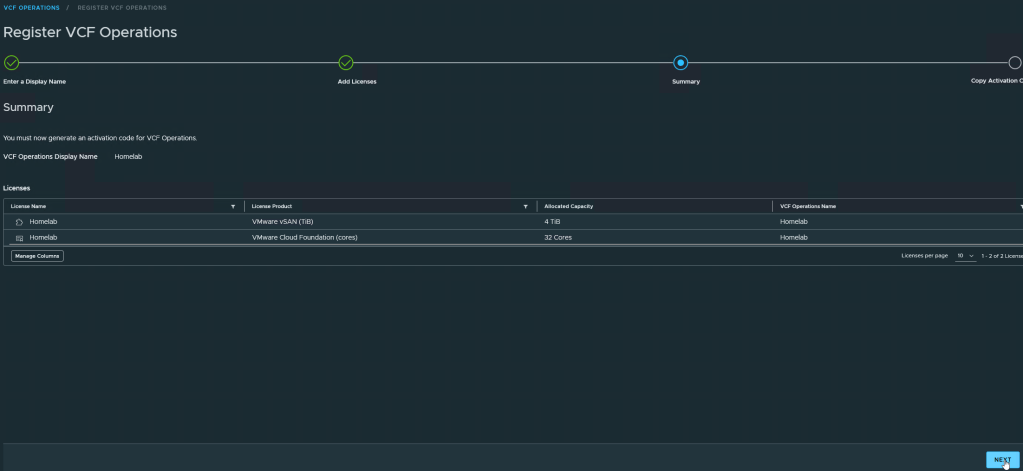
Once prompted, copy the activation code.
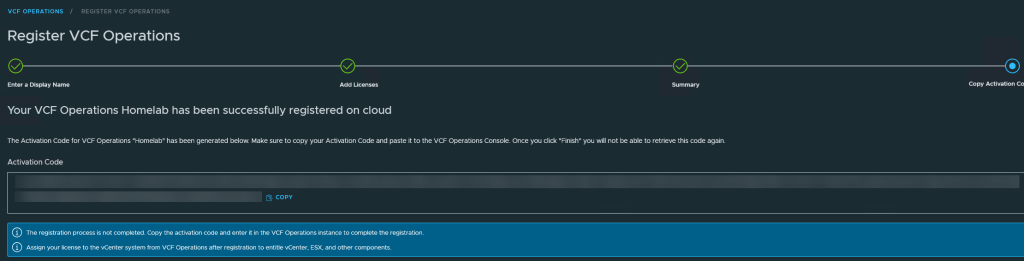
Go back to the Operations Console and click Enter Activation Code
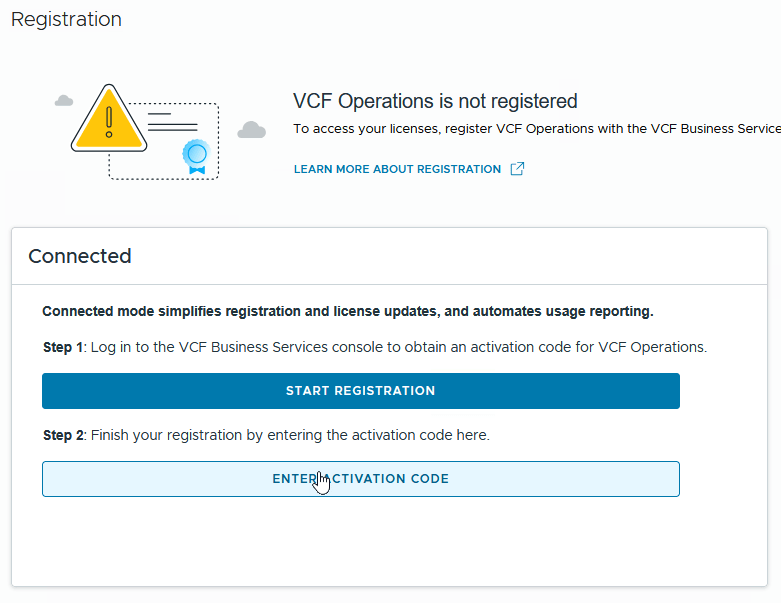
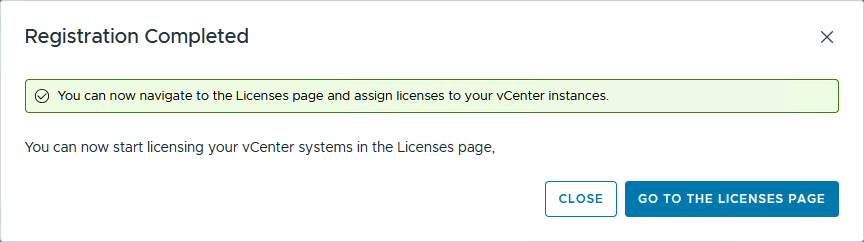
Paste the code, and complete the activation process.
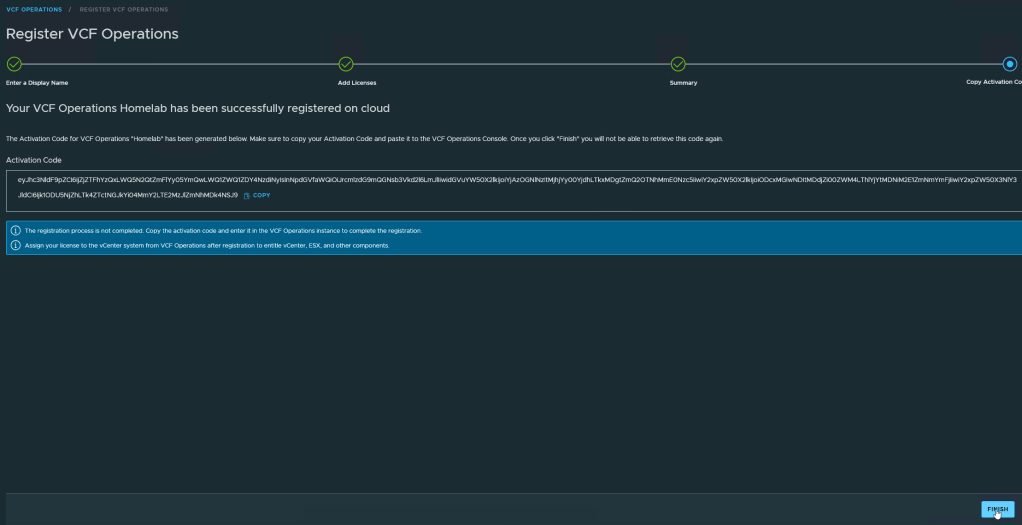
Before continuing, return to the VCF Business Services Console and click Finish on the registration page that is still waiting for completion. This step is easy to miss, but it’s required.
After this, your environment will show as licensed.

Back in the Operations Console, click on “Assign Primary License”
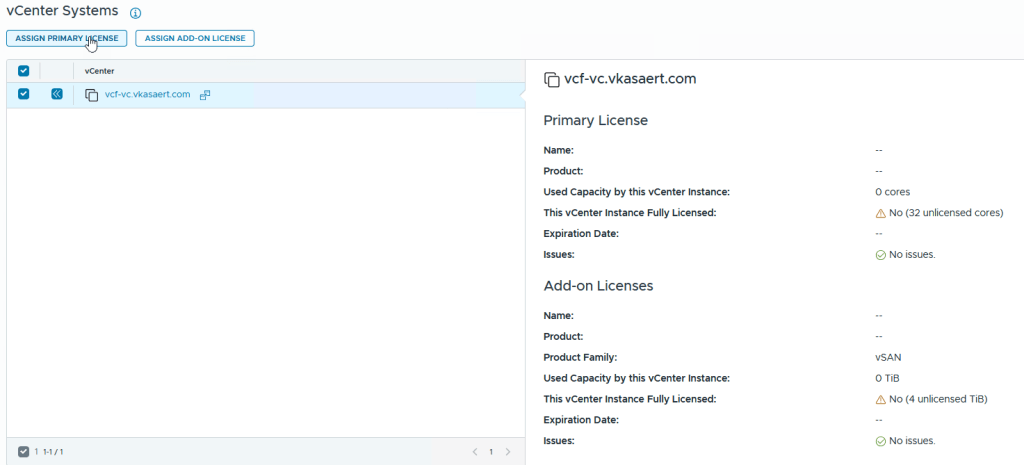
Select your License and click on “Assign”

In my case — just my luck — this failed with an error stating that the license could not be assigned.
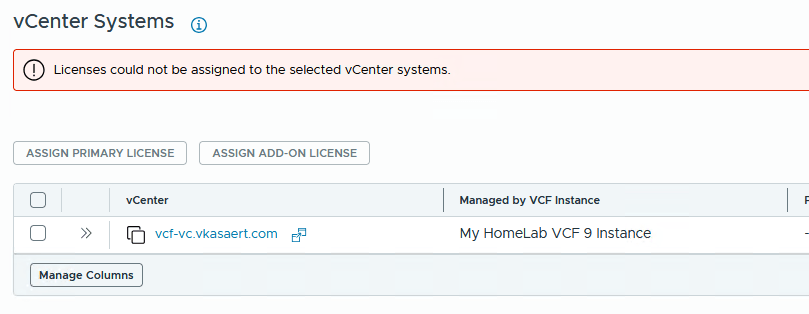
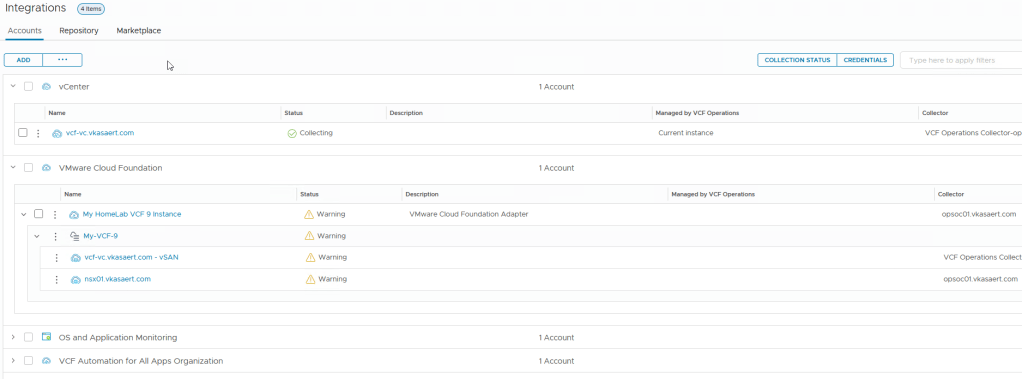
After some searching, I found KB416323, which describes the issue. While the KB mentions removing the vCenter adapter, don’t forget that you also need to remove the vCenter – vSAN adapter as well.
After removing both adapters, re-add vCenter and retry the license assignment. That resolved the issue for me.
2. Configure your depot
Next, we’ll configure the online depot so VCF can download binaries. Navigate to:
Fleet Management → Lifecycle
On the right-hand side, open Depot Configuration and click Configure.
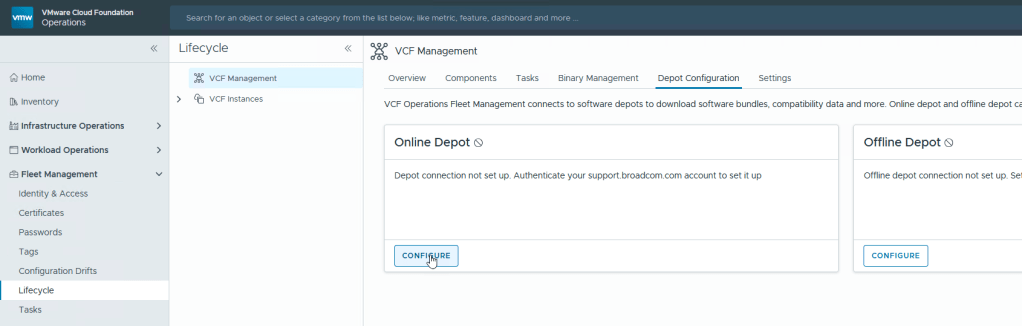
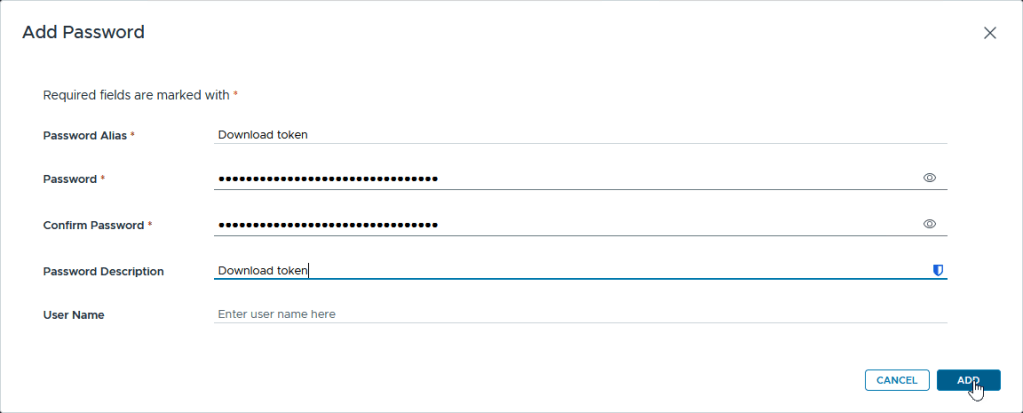
In the next step, add your download token to the Password Vault. Click the + icon
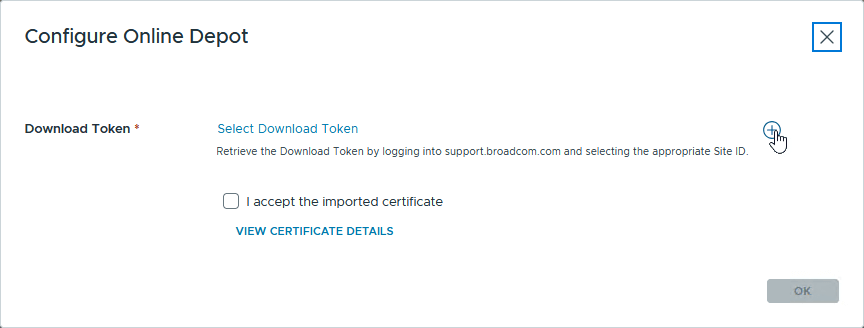
Fill in the required information, then click Add.
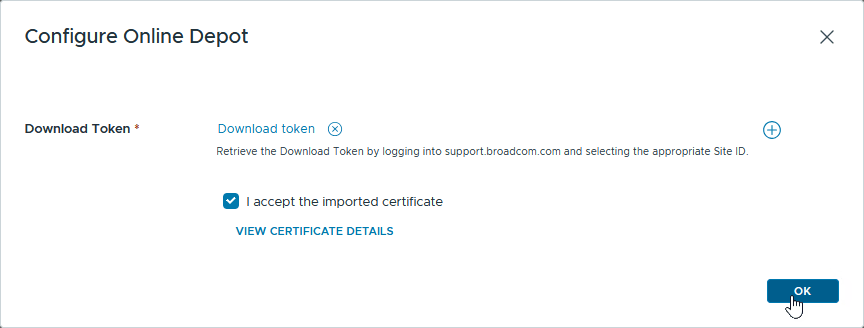
Select the newly added download token and accept the imported certificate by selecting the checkbox.
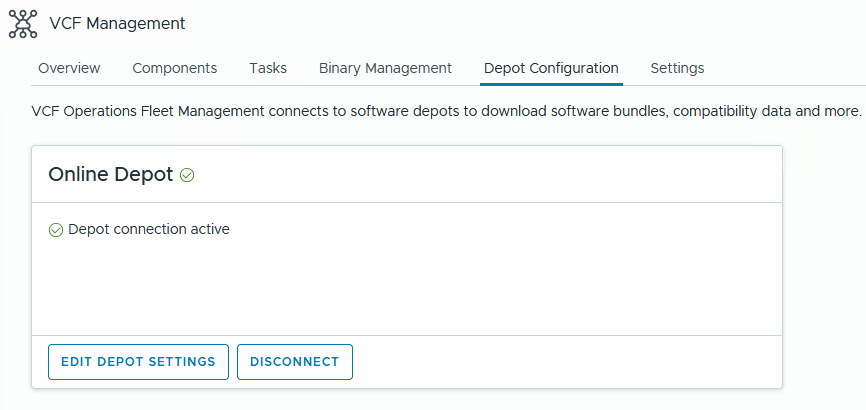
Once completed, your Online Depot should now be configured and ready to use.
3. Install additional components
3.1 Download necessary binaries
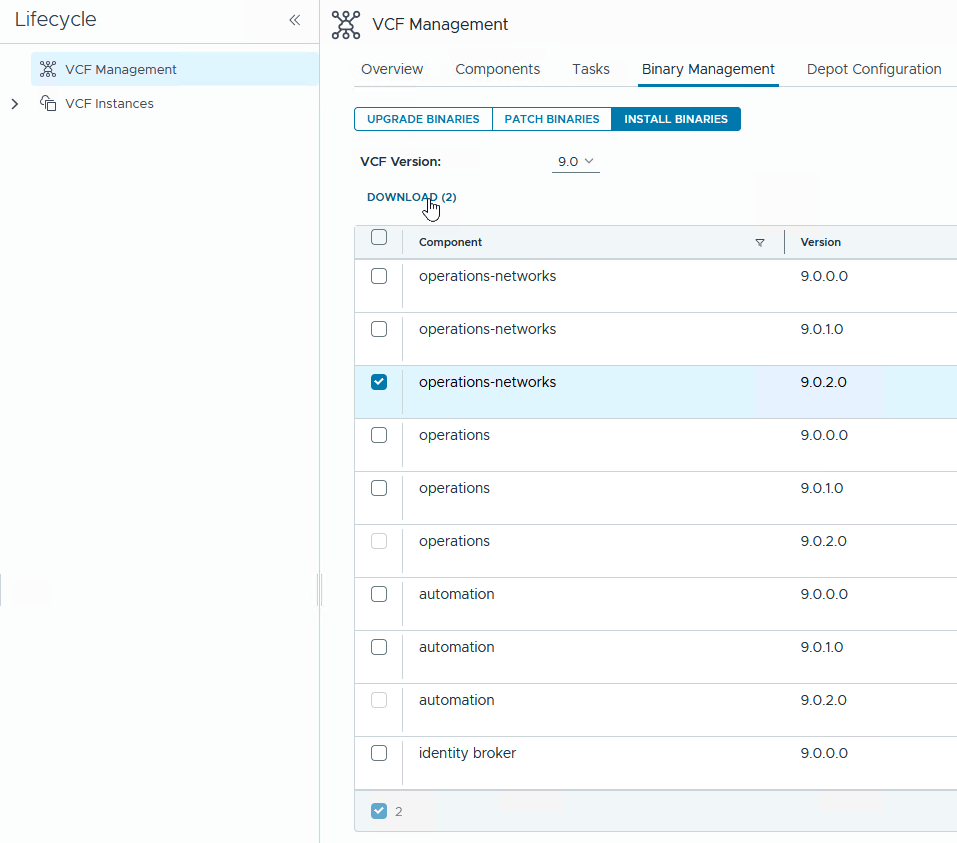
Go to Binary Management and open the Install Binaries tab.
Since I’m deploying Operations for Logs and Operations for Networks, I selected the corresponding binaries and started the download.
3.2 Deploy Operations-logs
Deploying additional components in VCF 9 feels very similar to the old LCM experience — which is a good thing. Go to:
Fleet Management → Lifecycle → Overview
From here, you can add components that are not yet deployed.
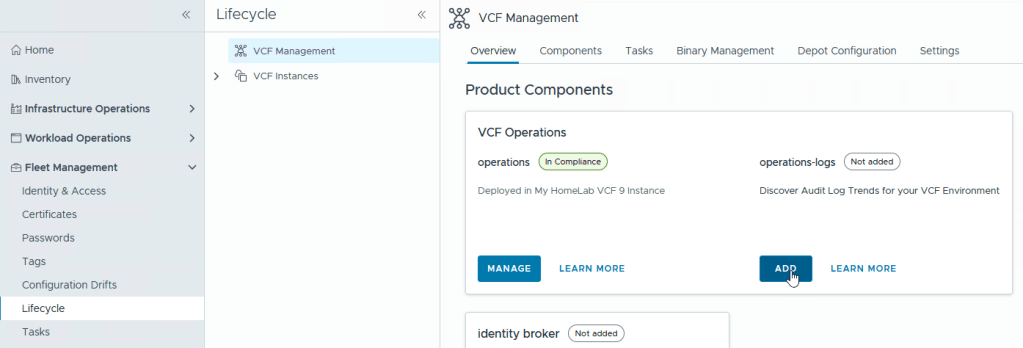
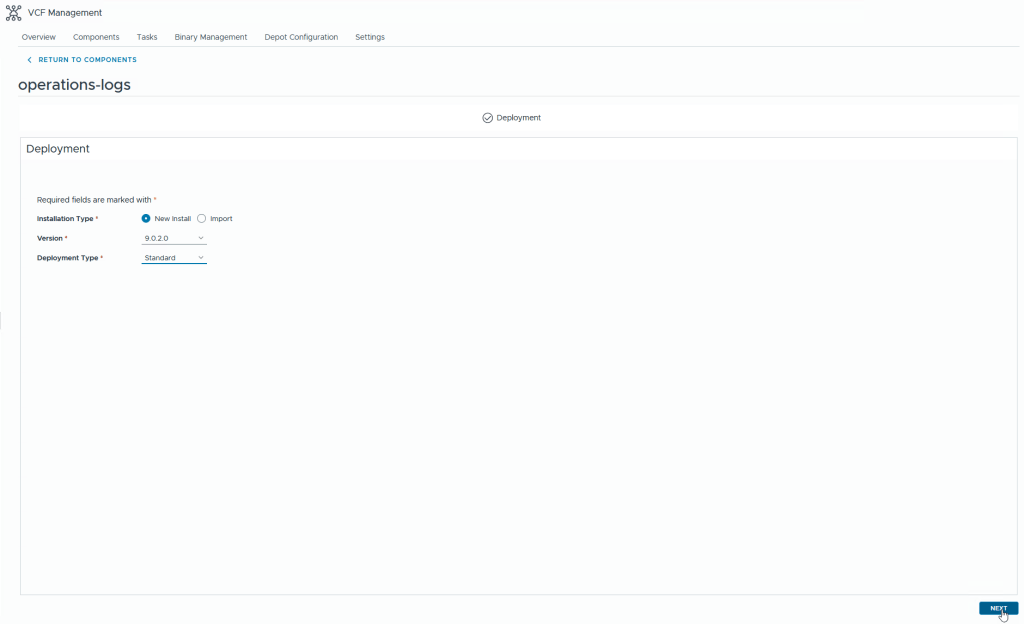
Start the deployment and choose a Standard installation.
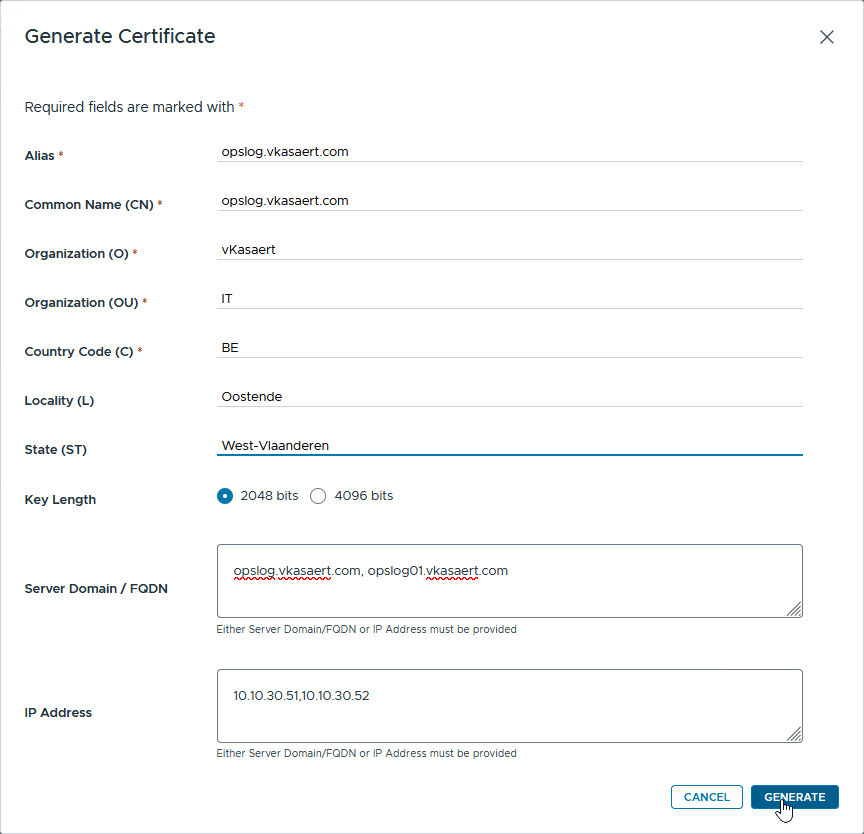
For this deployment, I generated a new self-signed certificate.
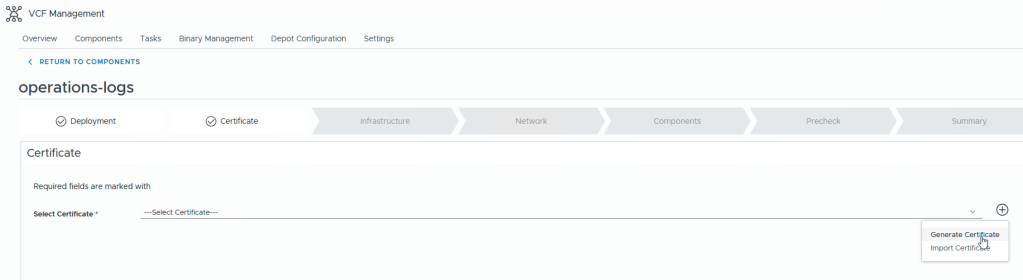
Fill in the required certificate details and click Generate.
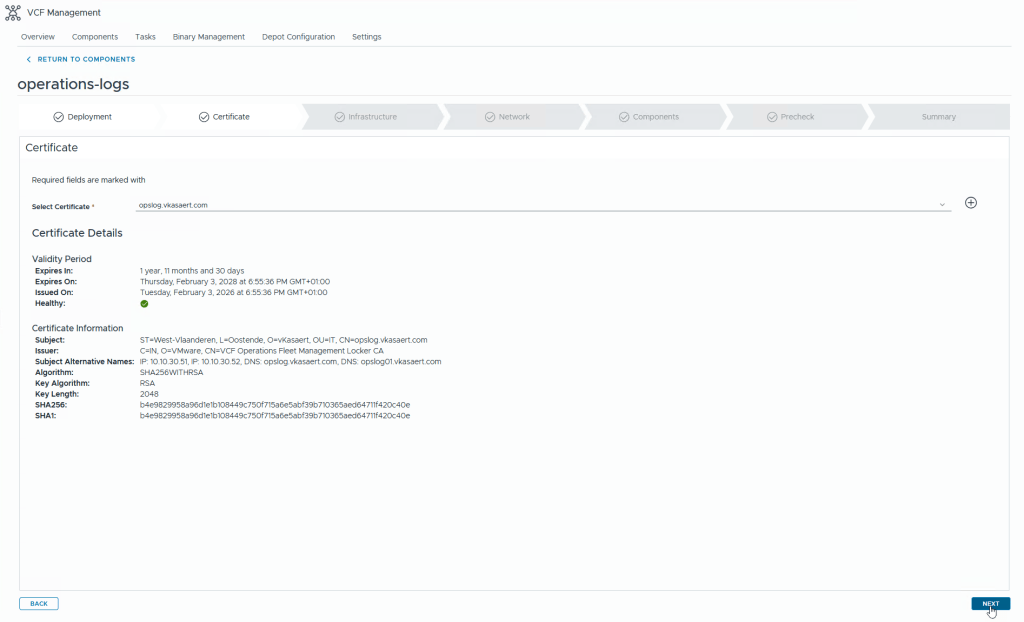
Validate the certificate and continue.
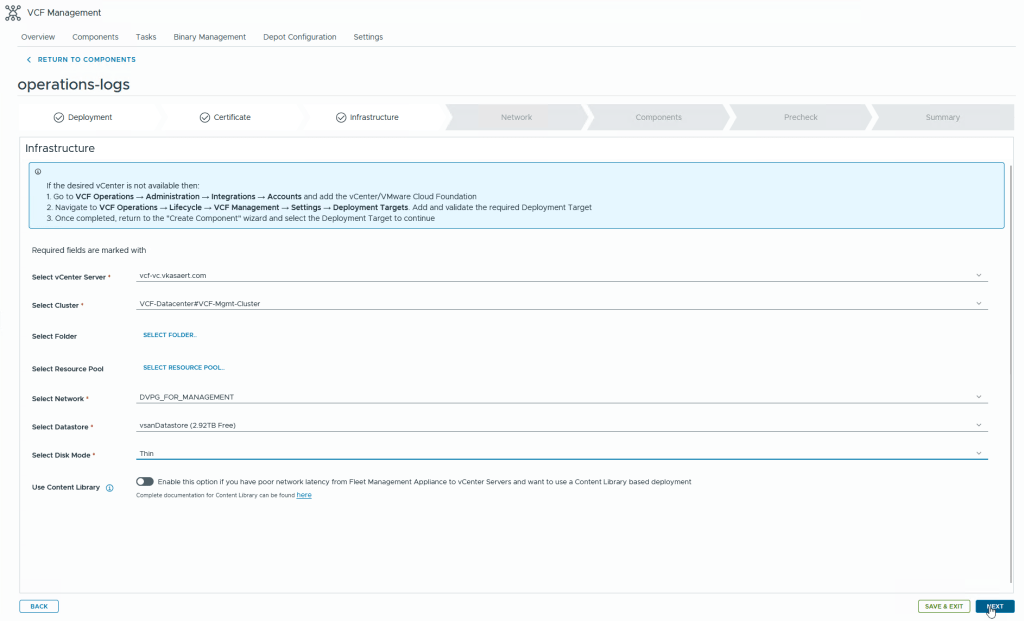
Select the target location for the deployment
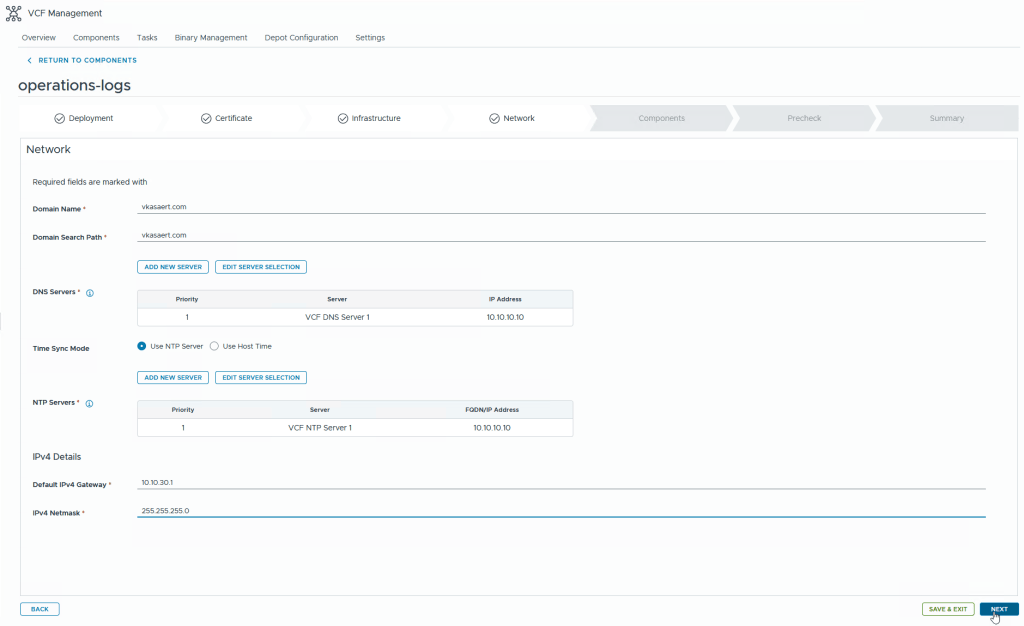
Configure the networking
Review the deployment settings.
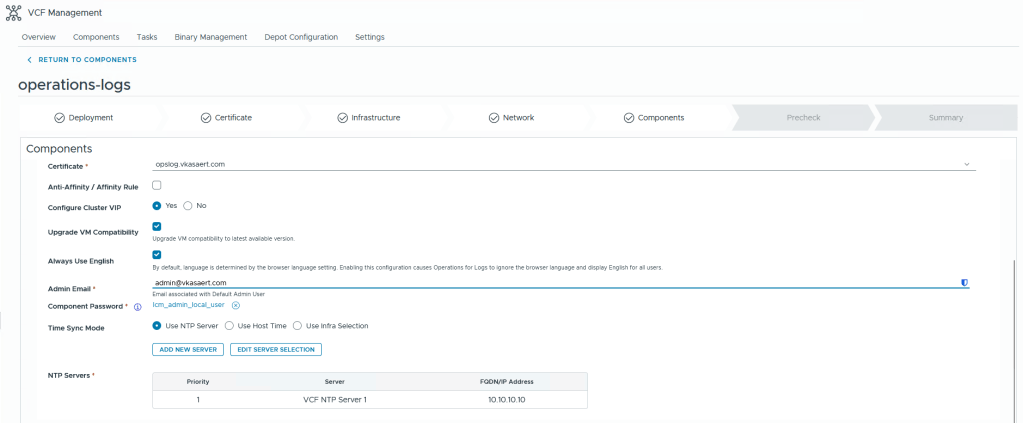
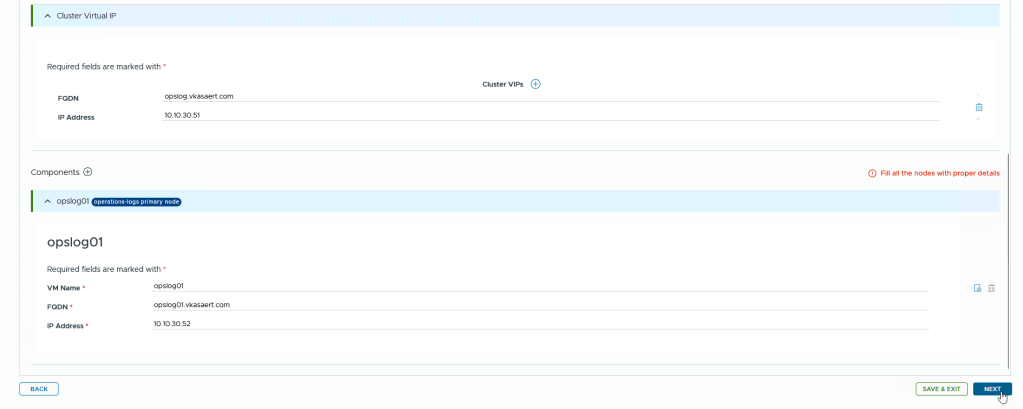
Next, provide the required VM configuration details
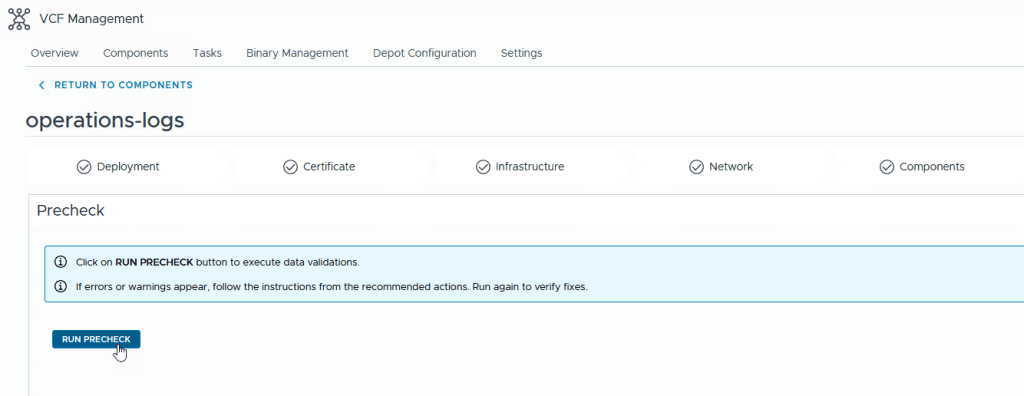
Now run the Precheck
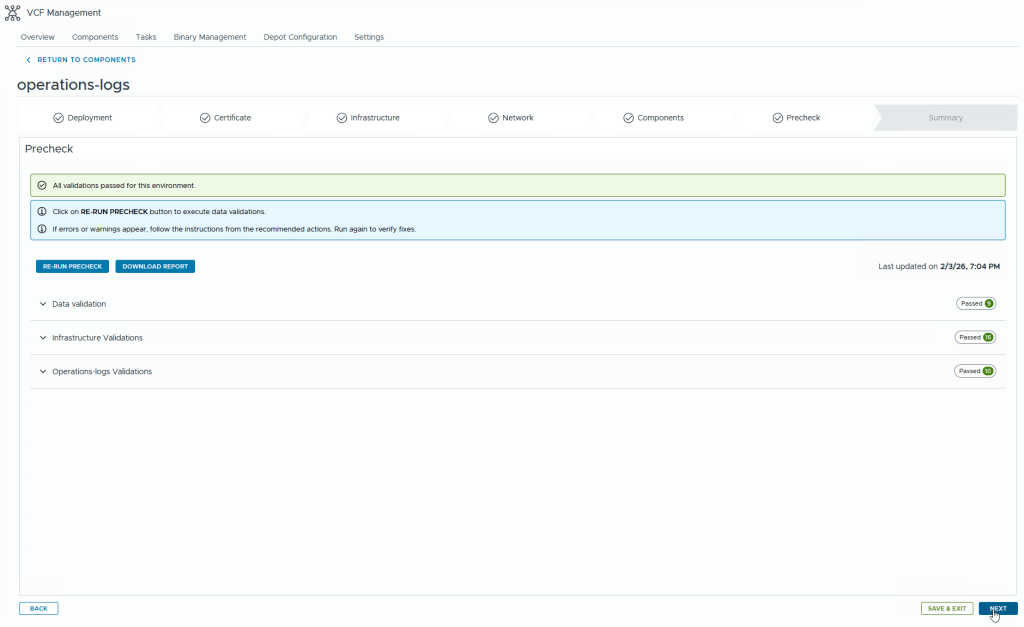
If everything passes and you get the green light, proceed to the next step.
Validate the final configuration and click Submit to start the deployment.
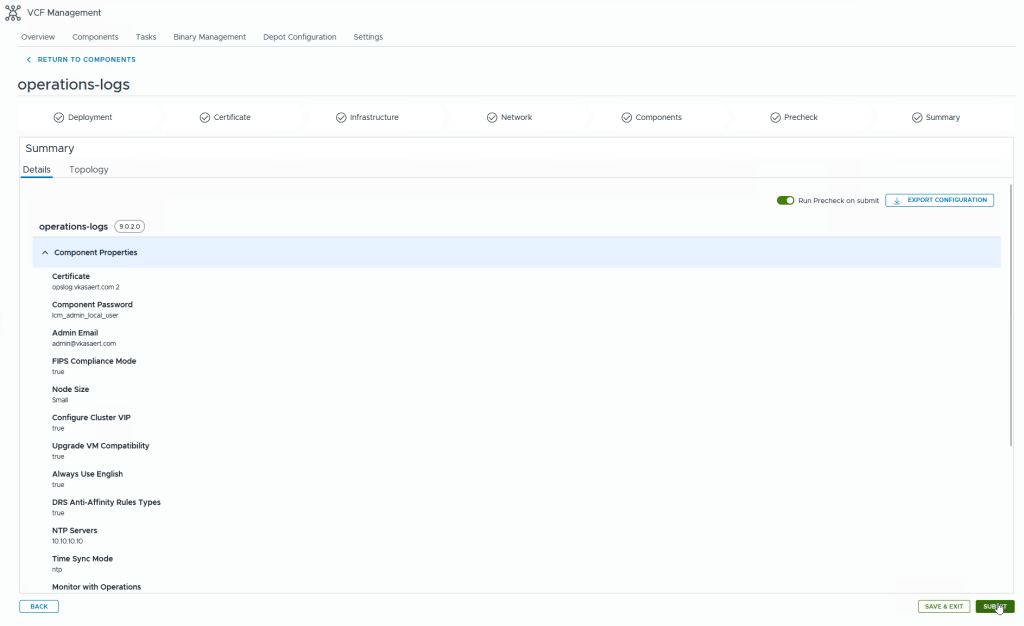
During my deployment I encountered below issue.
A simple reboot of the Operations for Logs appliance resolved the issue, and after retrying the request, the deployment completed successfully.
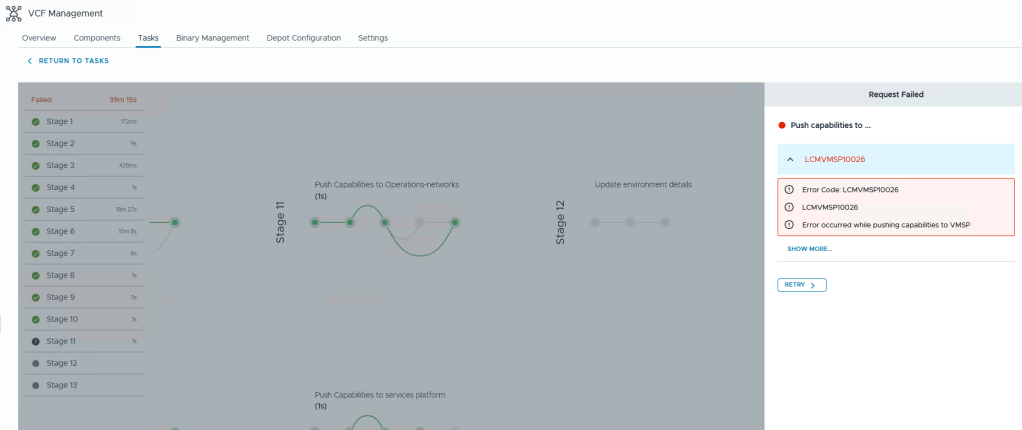
If you need to troubleshoot deployment issues, you can find relevant logs on the Fleet Manager at:
/var/log/vrlcm/vmware_vrlcm.log
3.3 Deploy Operations-network
After deploying Operations for Logs, the process for Operations for Networks should feel familiar.
The workflow is nearly identical, so I’ll leave this one as an exercise for the reader — you’ve got this 😉
4. Configure operations-logs
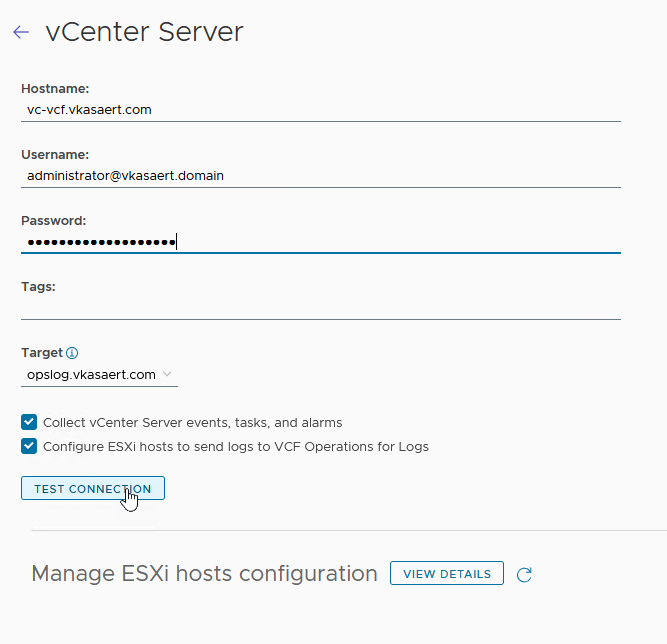
In operations-logs go to Integrations – vSphere. Click on add vCenter server

Fill in the information of your vCenter and test the connection.
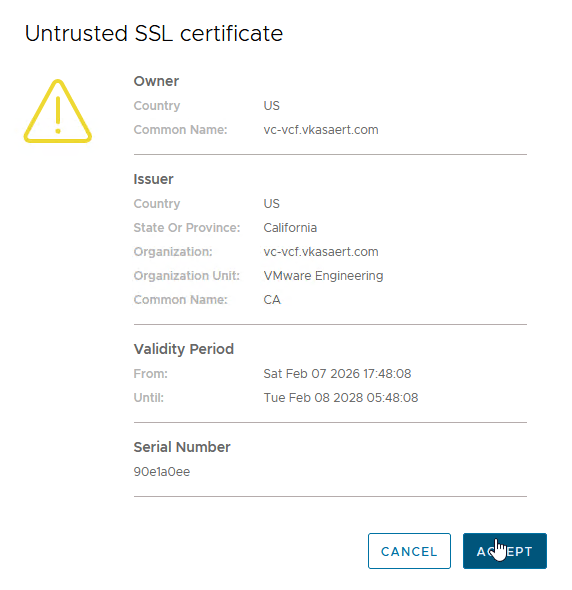
Accept the certificate
Click on “View Details”
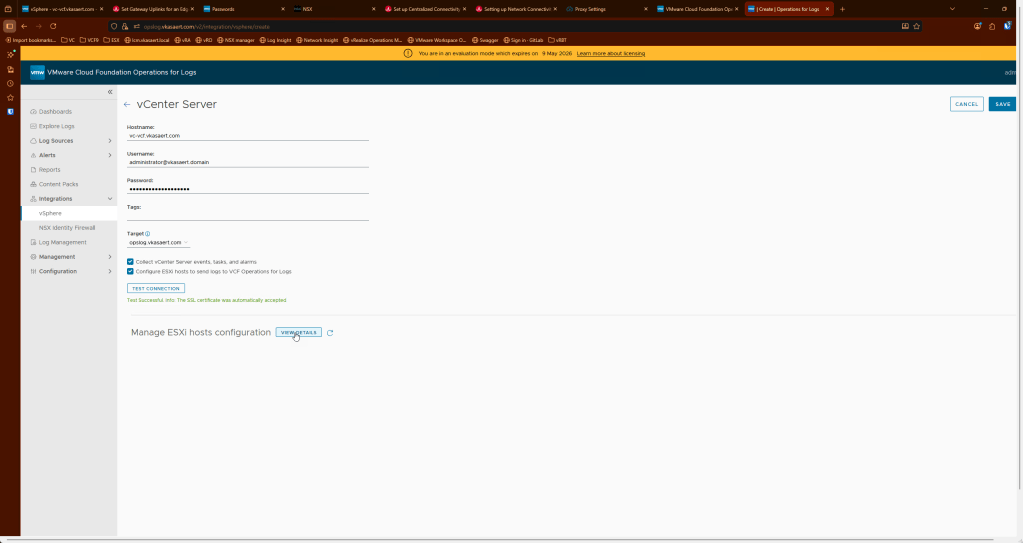
And check that your ESX’es are also automatically configured to send their logs over to operations-logs.
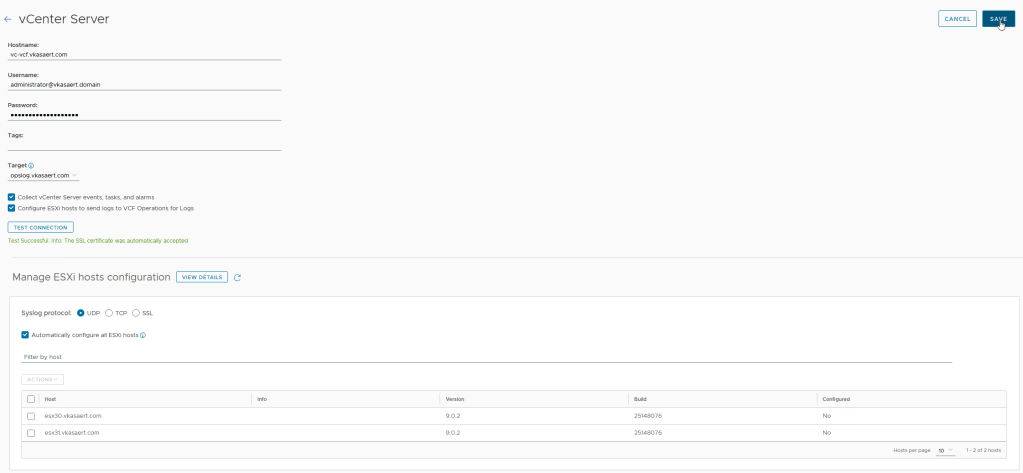
5. Configure backup
Before patching your environment, it is important that backups are stored outside of the SDDC Manager environment. If backups are still stored locally, the patching workflow may fail during lifecycle operations.
In this section, we configure backups for both Automation and NSX.
5.1 Automation
In Operations, navigate to: Fleet Management → Lifecycle. In the Overview section, click Manage for your Automation deployment.
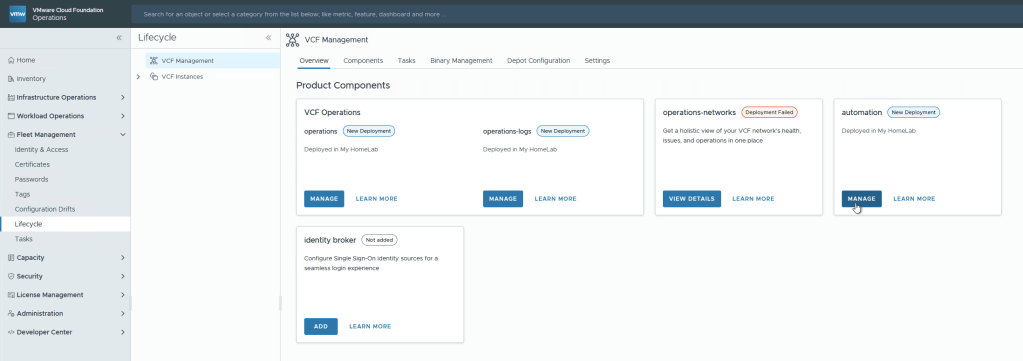
Go to Settings → SFTP Settings. Fill in the required information for your SFTP server. For the password field, click the + icon to store the password in the Password Vault.
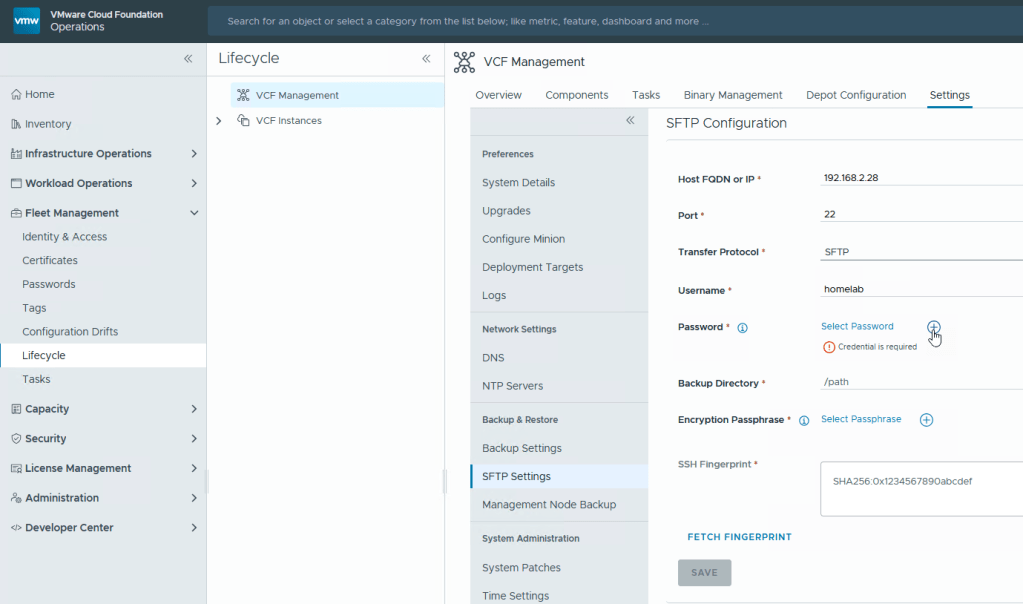
Enter the password information and click Add.
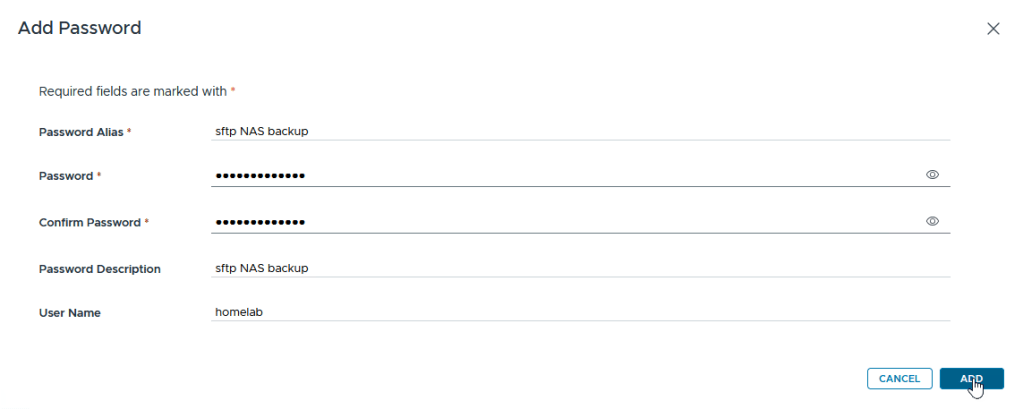
Next, click Fetch Fingerprint to retrieve the SFTP server fingerprint.
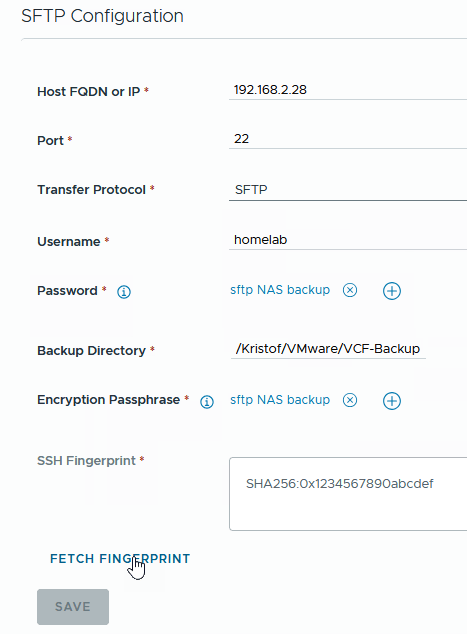
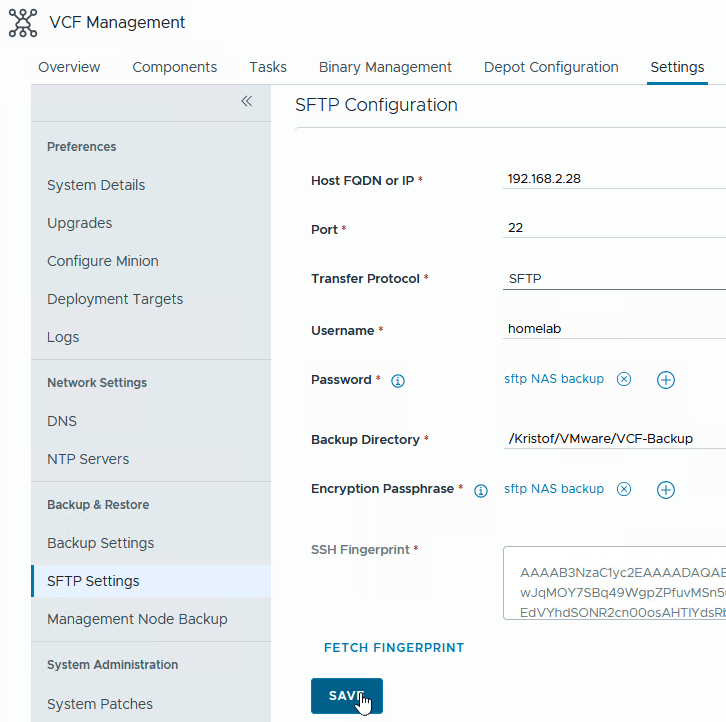
Once the fingerprint is retrieved, click Save.
Finally, verify that the SFTP Status shows Success.
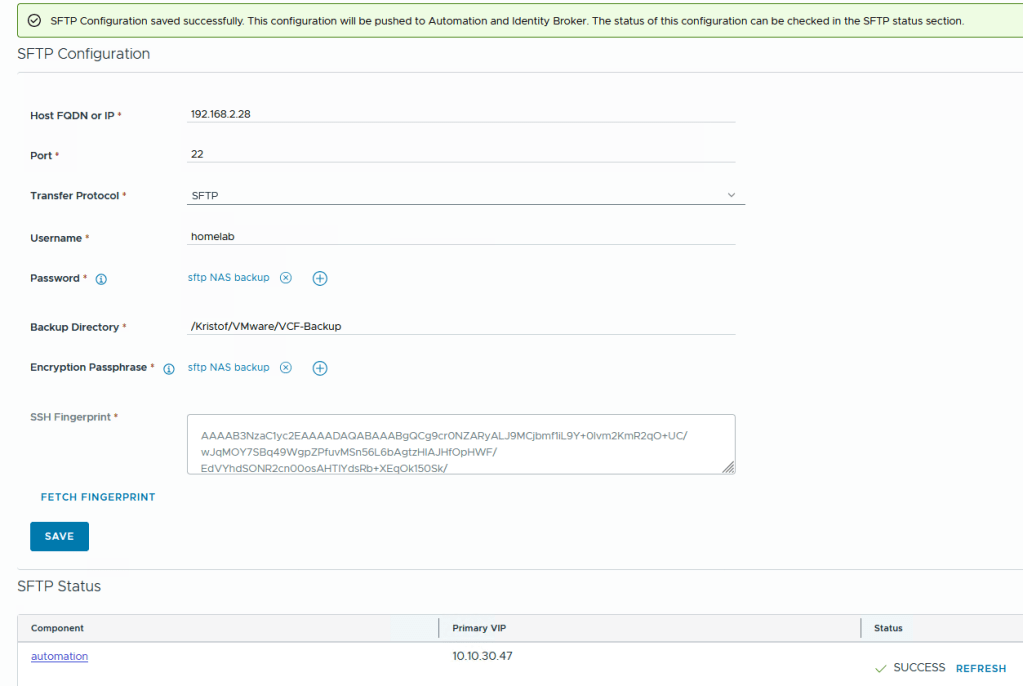
5.2 NSX
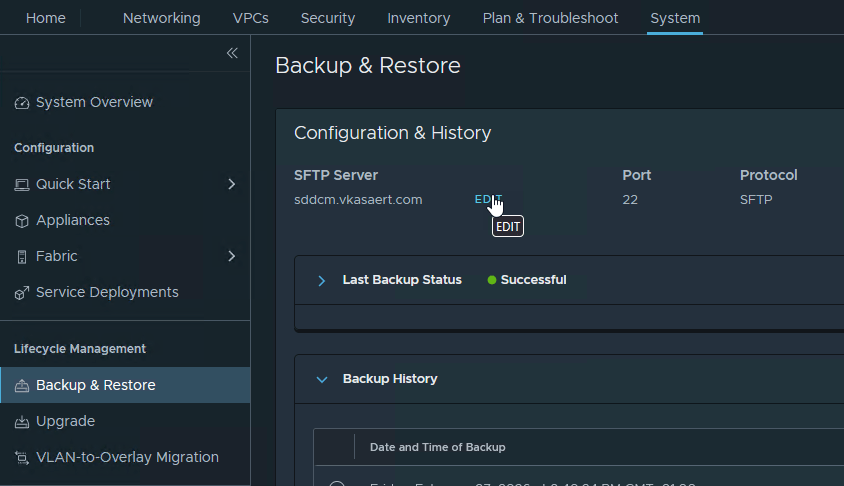
We also need to configure backups for the NSX environment. Navigate to: System → Lifecycle Management → Backup & Restore
Click Edit.
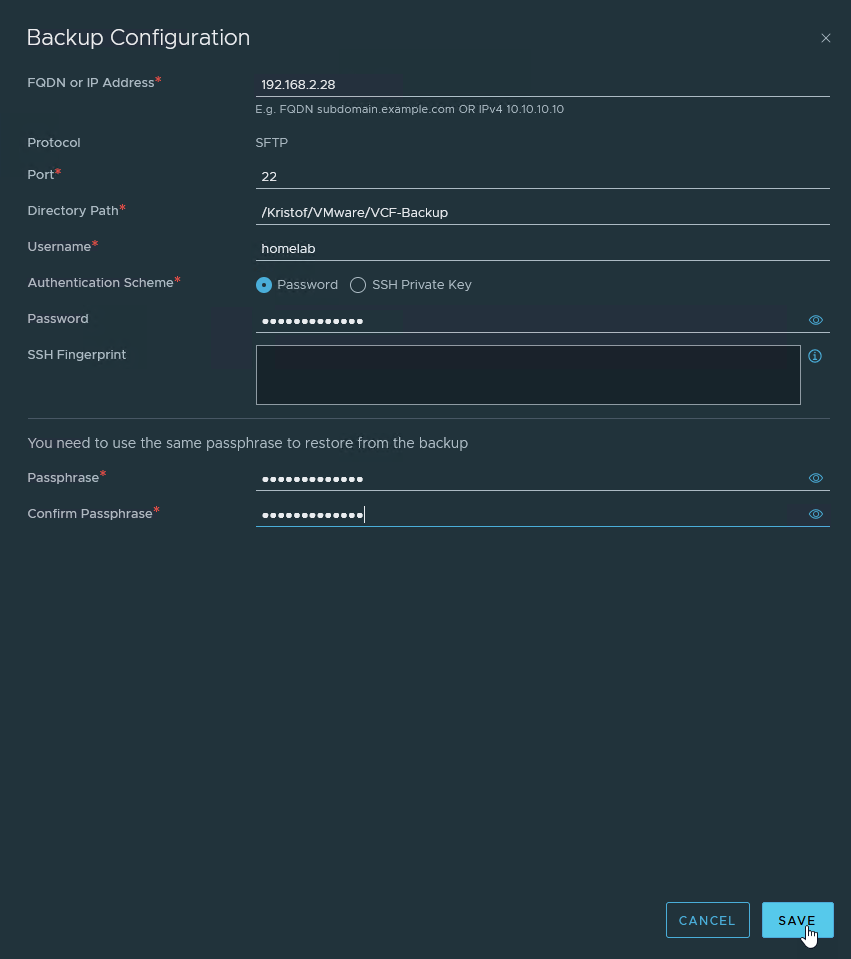
Fill in the required information for your SFTP backup location and click Save.
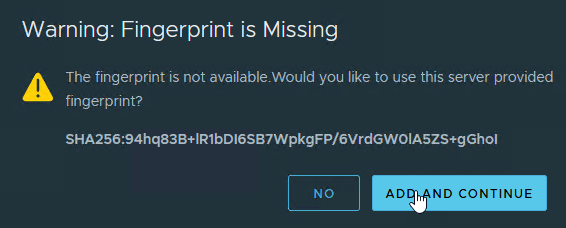
Click Add and Continue to accept the fingerprint.
Once the configuration is complete, you can trigger a backup of your NSX environment.

6. Final thoughts
VCF 9 keeps a lot of the familiar workflows while modernizing the platform, but post-deployment tasks still require attention to detail. Licensing quirks, adapter dependencies, and component deployment timing can all trip you up — especially in a homelab where things don’t always behave like production.
Hopefully, this walkthrough helps you get from a fresh VCF 9 deployment to a fully operational environment with fewer surprises.
 Kristof's virtual life